How to Make Your Smartphone Faster: 15 Proven Tips for 2026
Boost your smartphone's performance with expert tips.
8 min read • 1,628 words
Table of Contents
ToggleHow to Make Your Smartphone Faster: 15 Proven Tips for 2026
In today’s fast-paced digital world, having a smartphone that operates smoothly is essential. Many users often find their devices lagging or slowing down over time, which can be frustrating. Understanding how to make your smartphone faster is crucial not only for enhancing your user experience but also for ensuring that you can efficiently manage your daily tasks. This article will provide you with 15 proven tips that can significantly boost your smartphone’s performance in 2026.
From clearing cache regularly to uninstalling unused apps, each tip is designed to free up resources and improve your device’s speed. You’ll learn how using lightweight applications and disabling unnecessary animations can create a more responsive interface. Additionally, keeping your software updated is vital for optimal performance. By following these strategies, you can enjoy a faster, more efficient smartphone that meets your needs.
Step-by-Step Tutorial
Step 1: Clear Cache
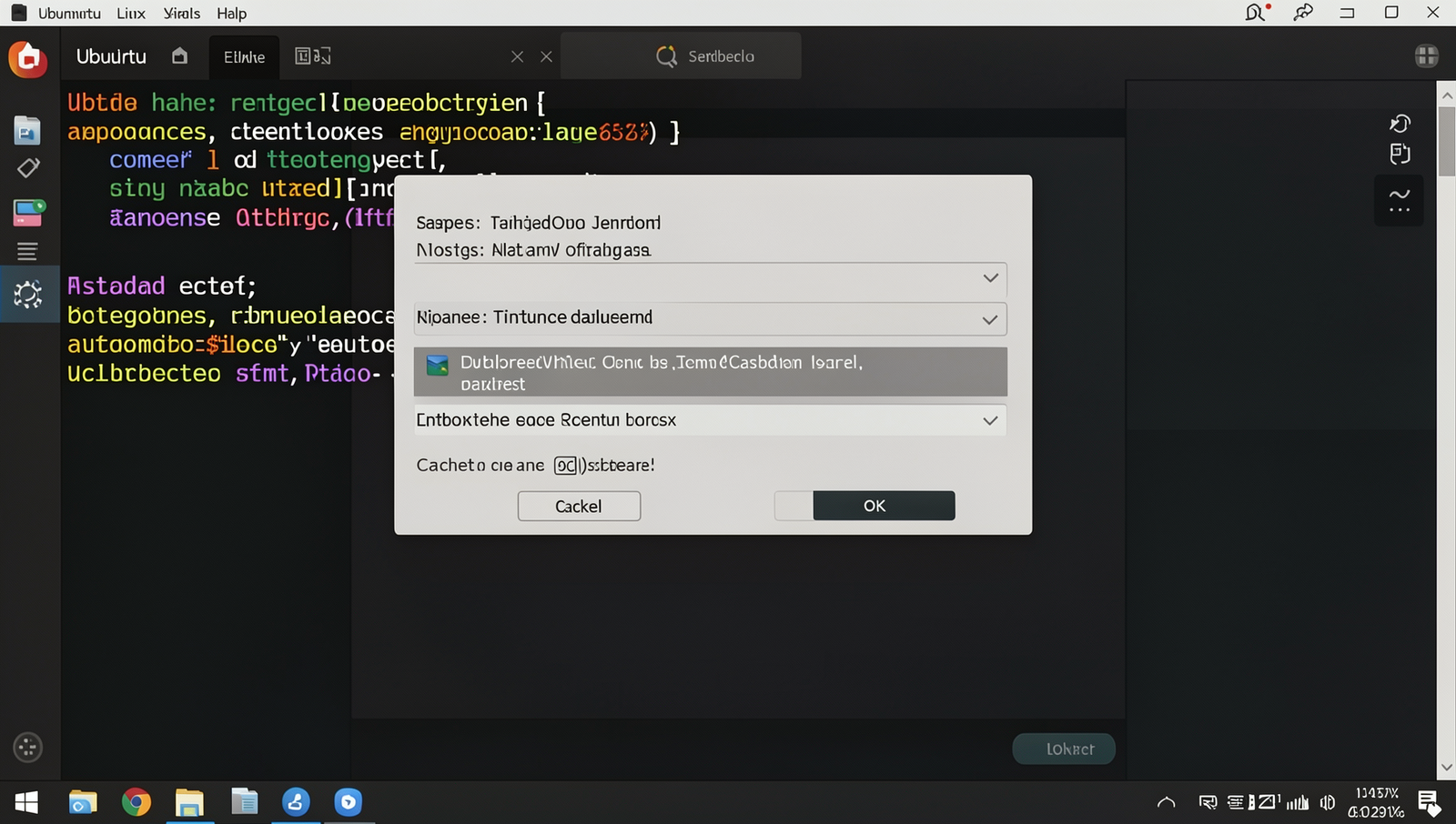
Clearing the cache on your smartphone is an essential step to enhance its performance. Follow these detailed instructions to clear the cache effectively:
1. **Open Settings**: Begin by locating the settings app on your smartphone. This is usually represented by a gear icon. Tap on it to access the settings menu.
2. **Find Storage**: Scroll through the settings menu until you find the ‘Storage’ option. This section provides an overview of how much space is being used on your device.
3. **Select Cached Data**: Within the storage section, look for an option labeled ‘Cached Data’ or ‘Cache’. This option displays the amount of storage being occupied by temporary files.
4. **Tap on Cached Data**: Once you find the cached data option, tap on it. A prompt will appear asking for confirmation to clear the cache.
5. **Confirm Clearing Cache**: Confirm your action by tapping ‘OK’ or ‘Clear’. This will remove all temporary files stored by apps, freeing up space and potentially speeding up your device.
After completing these steps, you should notice an increase in available storage, which can lead to improved performance.
**Tips**: To maintain your smartphone’s speed, consider clearing the cache regularly. Additionally, using a cache cleaning app can simplify this process, allowing for quick and efficient management of temporary files.
**Warnings**: Be aware that clearing the cache may log you out of some applications, requiring you to log back in.
Step 2: Uninstall Unused Apps
Uninstalling unused apps is a crucial step in optimizing your smartphone’s performance. By removing apps that you no longer use, you can free up valuable storage space and potentially enhance the speed of your device. Follow these detailed instructions to effectively uninstall apps:
1. **Access Your App Drawer**: Start by locating the app drawer on your smartphone. This is usually represented by a grid icon on your home screen. Tap on it to view all the apps installed on your device.
2. **Identify Unused Apps**: Scroll through the list of apps and identify those that you rarely or never use. Take your time to review each app, as some may have been forgotten but still occupy space.
3. **Long-Press the App Icon**: Once you have identified an app you wish to uninstall, long-press its icon. This will bring up a menu with several options.
4. **Select ‘Uninstall’**: From the menu that appears, select the ‘Uninstall’ option. A confirmation prompt may appear, asking if you are sure you want to remove the app.
5. **Confirm Uninstallation**: Confirm your choice by tapping ‘OK’ or ‘Yes’. The app will then be removed from your device.
6. **Backup Important Data**: Before uninstalling any app, ensure that you back up any important data associated with it. This is especially important for apps that store personal information or files.
Regularly checking for unused apps every few months can help maintain your device’s performance. Additionally, consider using an app manager to identify rarely used apps more efficiently.
Step 3: Disable Background App Refresh
Disabling Background App Refresh can significantly enhance your smartphone’s performance and battery life. This feature allows apps to update their content in the background, which can lead to unnecessary resource consumption. Follow these detailed instructions to disable it effectively:
- Open Settings: Start by locating the Settings app on your smartphone. This is usually represented by a gear icon.
- Select ‘Apps’: Scroll through the settings menu until you find the option labeled ‘Apps’ or ‘Applications’. Tap on it to access a list of all installed applications.
- Find ‘Background App Refresh’: Within the Apps menu, look for the ‘Background App Refresh’ option. This may be located under a sub-menu such as ‘Advanced’ or ‘Data Usage’.
- Disable Background App Refresh: You will see a list of apps that have the Background App Refresh feature enabled. Go through the list and toggle off the feature for apps that do not require constant updates. It is advisable to limit this feature to essential apps only.
- Check Individual App Settings: For some applications, you might find additional settings regarding background refresh. Review these settings to ensure that you are optimizing performance without compromising functionality.
By following these steps, you should notice reduced battery consumption and improved overall performance. However, be aware that some apps may not function properly without Background App Refresh enabled, so consider your usage patterns before making these changes.
Step 4: Update Your Operating System
Updating your smartphone’s operating system is crucial for maintaining optimal performance and security. Follow these sub-steps to ensure your device is running the latest software:
- Access Settings: Begin by unlocking your smartphone and locating the ‘Settings’ app. This app is usually represented by a gear icon and can be found on your home screen or in the app drawer.
- Select ‘About Phone’: Scroll down within the Settings menu until you find the ‘About Phone’ option. This section contains vital information about your device, including the current software version.
- Check for System Updates: In the ‘About Phone’ section, look for an option labeled ‘System Updates’ or ‘Software Updates’. Tap on it to initiate the check for any available updates.
- Download and Install Updates: If an update is available, you will see a prompt to download it. Tap on ‘Download’ and wait for the process to complete. Once downloaded, you will be prompted to install the update. Confirm your choice, and your device will begin the installation process.
- Ensure Device is Charged: Before starting the update, make sure your smartphone has sufficient battery life or is plugged into a power source. This prevents interruptions during the update process.
Regularly checking for updates is essential to keep your device optimized. Additionally, enabling automatic updates, if available, can save you time and ensure you always have the latest features and security patches.
Step 5: Reduce Animations
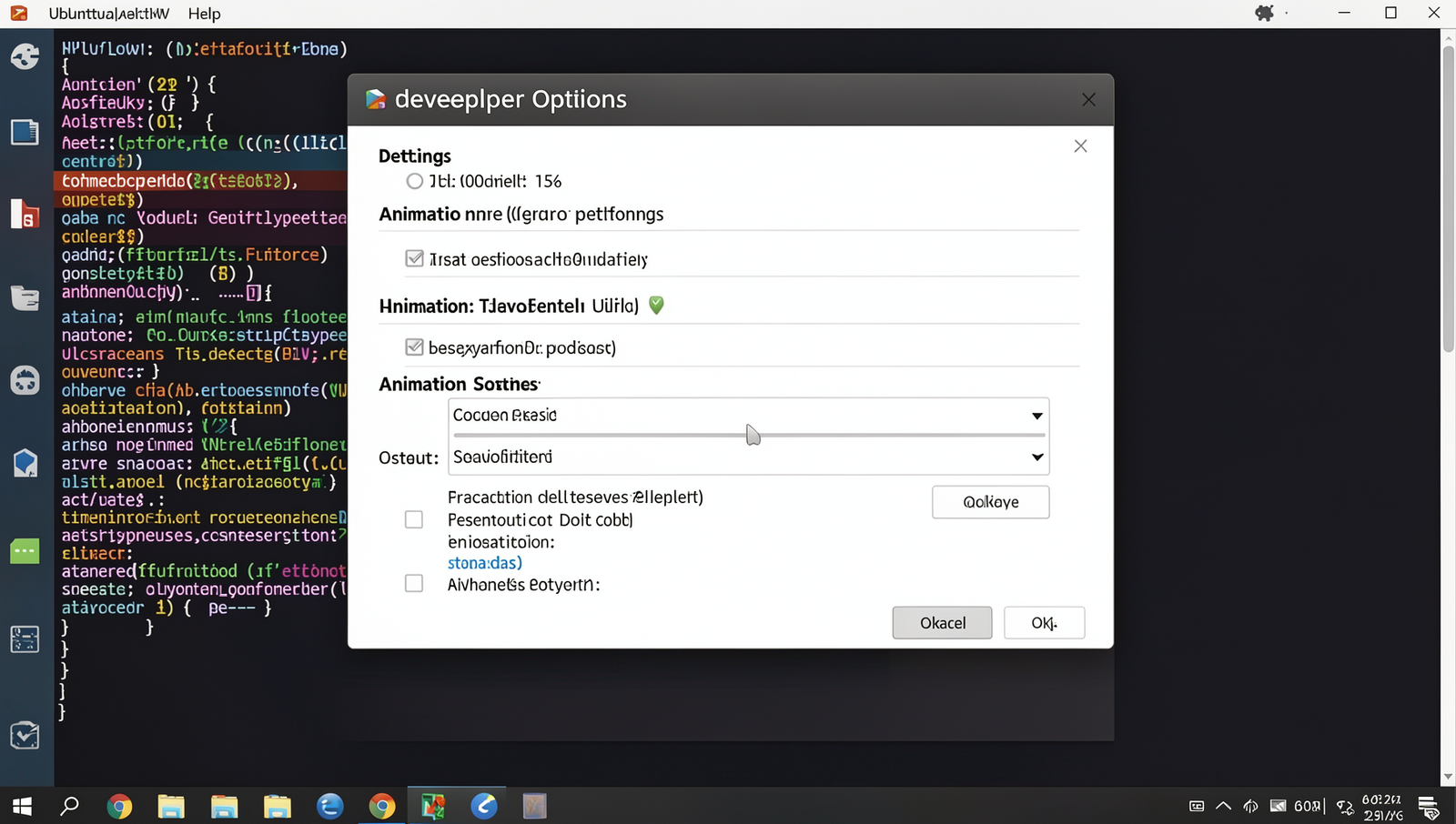
Reducing animations on your smartphone can significantly enhance its performance, making it feel faster and more responsive. Follow these numbered sub-steps to adjust the animation settings:
1. **Enable Developer Options**:
– Go to your phone’s **Settings**.
– Scroll down and select **About Phone**.
– Find the **Build Number** entry and tap it seven times. You may need to enter your device’s PIN or password to confirm. A message will appear indicating that Developer Options have been enabled.
2. **Access Developer Options**:
– Return to the main **Settings** menu.
– Scroll down and select **System** (or directly find **Developer Options** depending on your device).
– Tap on **Developer Options** to open the settings.
3. **Adjust Animation Scales**:
– Look for the sections labeled **Window Animation Scale**, **Transition Animation Scale**, and **Animator Duration Scale**.
– Tap on each of these options and set them to **Animation Off** or reduce the scale to **0.5x** for a more subtle effect.
By reducing or disabling these animations, your device will spend less time on visual effects and more time executing your commands, resulting in a noticeable speed increase.
**Tips**: Only adjust animation scales if you are comfortable with developer settings. If you experience any issues or find the changes unsatisfactory, you can easily revert them back to their original settings.
**Warnings**: Be cautious when changing developer options, as it can affect device behavior. Always remember to document your original settings before making any changes.
Step 6: Use Lite Versions of Apps
1. **Identify Your Most Used Apps**: Start by making a list of the applications you frequently use on your smartphone. Common examples include social media platforms, messaging services, and news apps.
2. **Search for Lite Versions**: Open your device’s app store and search for the ‘Lite’ versions of these apps. For instance, you can look for Facebook Lite, Twitter Lite, or Messenger Lite. These versions are specifically designed to consume less data and use fewer system resources.
3. **Check Compatibility**: Before downloading, ensure that the lite version is compatible with your device. Most lite apps are designed to work on a wide range of smartphones, including older models.
4. **Read Reviews**: Take a moment to read user reviews and ratings for the lite versions. This will help you determine if the app meets your needs and expectations. Look for comments about performance, usability, and any missing features.
5. **Download and Install**: Once you have selected the appropriate lite version, click on the download button to install it on your device. The installation process is usually quick and straightforward.
6. **Uninstall Full Versions**: After successfully installing the lite version, consider uninstalling the full version of the app to free up storage space and reduce background resource usage.
By following these steps, you will likely notice a significant improvement in your smartphone’s performance. Lite versions are optimized for efficiency, allowing for smoother operation and faster loading times. However, keep in
About the Author