How to Protect Your Phone From Hackers: 15 Security Tips for 2026
Secure your smartphone against hackers with essential security tips.
8 min read • 1,644 words
Table of Contents
ToggleHow to Protect Your Phone From Hackers: 15 Security Tips for 2026
In today’s digital age, knowing how to protect your phone from hackers is more crucial than ever. With the increasing reliance on smartphones for personal and professional tasks, the risk of cyber threats has skyrocketed. Hackers are constantly developing new techniques to infiltrate devices, steal sensitive information, and compromise user privacy. This article will provide you with essential security tips to safeguard your phone and ensure your data remains secure.
Throughout this guide, you will learn effective strategies to enhance your phone’s security. From using strong, unique passwords for your accounts to enabling two-factor authentication, each tip is designed to fortify your defenses against potential attacks. Additionally, we will discuss the importance of keeping your phone’s operating system and apps updated, avoiding public Wi-Fi networks without a VPN, and being cautious of suspicious links and downloads. By following these guidelines, you can significantly reduce the risk of falling victim to cybercrime.
Step-by-Step Tutorial
Step 1: Use Strong Passwords
Creating strong passwords is the first line of defense against hackers. Follow these sub-steps to ensure your passwords are robust and secure:
- Create Complex Passwords: Your password should be at least 12 characters long and include a mix of uppercase letters, lowercase letters, numbers, and special characters. For example, instead of using “password123”, opt for something like “P@ssw0rd!2026”.
- Avoid Easily Guessable Information: Do not use personal information such as your name, birthday, or common words that can be easily associated with you. Hackers often use personal data to crack passwords.
- Use Unique Passwords for Different Accounts: Never use the same password across multiple accounts. If one account is compromised, all others will be at risk. Consider using a password manager to keep track of your unique passwords.
- Enable Two-Factor Authentication: Whenever possible, enable two-factor authentication (2FA) on your accounts. This adds an extra layer of security, requiring not just your password but also a second form of verification, such as a code sent to your phone.
- Regularly Change Your Passwords: Make it a habit to change your passwords every few months. This minimizes the risk of long-term exposure if your password is ever compromised.
By following these guidelines, your accounts will be significantly less vulnerable to unauthorized access, giving you peace of mind in an increasingly digital world.
Step 2: Enable Two-Factor Authentication
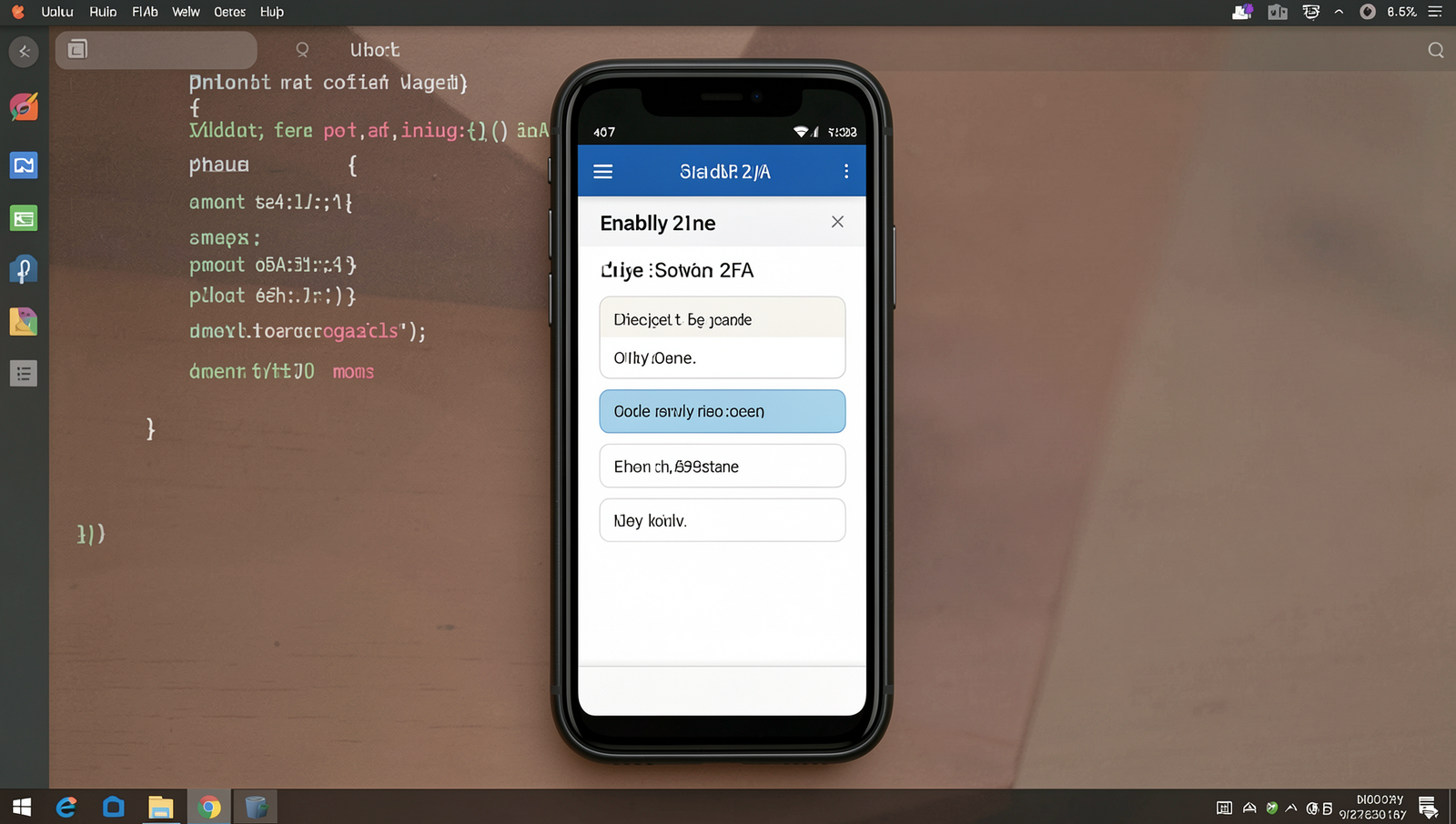
Enabling two-factor authentication (2FA) is a crucial step in protecting your phone and online accounts from hackers. By requiring a second form of verification, 2FA significantly enhances your account security. Follow these detailed instructions to activate 2FA on your accounts:
1. **Choose Your Accounts**: Identify which accounts you want to secure with 2FA. This typically includes email, social media, and banking accounts.
2. **Access Security Settings**: Log into each account and navigate to the security settings. This is usually found under “Account Settings” or “Privacy and Security.”
3. **Locate Two-Factor Authentication**: Look for an option labeled “Two-Factor Authentication,” “2-Step Verification,” or similar. Click on it to begin the setup process.
4. **Select Your Verification Method**: You will typically have options for receiving a verification code. Choose an authenticator app, such as Google Authenticator or Authy, for better security. Avoid SMS, as it can be vulnerable to interception.
5. **Follow the Prompts**: The service will guide you through the setup process. This usually involves scanning a QR code with your authenticator app or entering a code.
6. **Backup Codes**: After enabling 2FA, the service may provide backup codes. Store these codes in a safe place, as they can help you regain access if you lose your phone.
7. **Regularly Review Settings**: Periodically check your 2FA settings and recovery options to ensure they remain up-to-date.
Remember to be cautious of phishing attempts that may try to bypass 2FA. Always verify the source before entering your verification codes. Keeping your authenticator app secure is also essential, as it is a critical component of your 2FA setup.
Step 3: Keep Your Software Updated
Keeping your phone’s software updated is crucial for maintaining security. Here are detailed steps to ensure your device is protected:
1. **Enable Automatic Updates**: Most smartphones allow you to enable automatic updates for both the operating system and applications. This feature ensures that you receive the latest security patches without having to manually check for updates. To enable this, go to your device’s settings, find the “Software Update” section, and toggle on the automatic updates option.
2. **Check for Updates Manually**: If automatic updates are not available or you prefer to check manually, do so at least once a week. Navigate to the settings, select “Software Update,” and tap on “Check for Updates.” This will prompt your device to search for any available updates.
3. **Read Update Notes**: Before installing updates, take a moment to read the update notes. These notes often include information about vulnerabilities that have been addressed, which can help you understand the importance of the update.
4. **Uninstall Outdated Apps**: Regularly review the apps installed on your device. If an app is no longer supported or updated by its developer, consider uninstalling it. Outdated apps can be a significant security risk.
5. **Upgrade Older Devices**: If your device is unable to support the latest updates, it may be time to consider upgrading. Older devices are more susceptible to security threats as they may not receive critical updates.
By following these steps, you can significantly reduce the risk of malware and exploits targeting your phone. Keeping your software updated is a fundamental practice in safeguarding your personal information.

Step 4: Install Security Apps
To bolster your phone’s defenses against hackers, installing reputable security applications is essential. Follow these sub-steps to ensure you choose the right apps for your needs:
1. **Research Security Apps**: Start by looking for well-known security applications that specialize in mobile protection. Popular options include Norton, McAfee, and Bitdefender. Visit their official websites or trusted tech review sites to gather information.
2. **Check Features**: Ensure the apps you consider offer comprehensive features such as malware scanning, anti-theft measures, and privacy protection. Real-time protection is crucial, as it helps detect threats as they occur.
3. **Read Reviews**: Before making a decision, read user reviews and expert recommendations to gauge the effectiveness of the security apps. Look for feedback on their performance, ease of use, and customer support.
4. **Download from Official Sources**: Always download security apps from official app stores like Google Play Store or Apple App Store. This minimizes the risk of downloading malicious software.
5. **Avoid Conflicts**: Be cautious about installing multiple security apps simultaneously, as they may conflict with each other and reduce overall effectiveness. Stick to one reputable app that meets your needs.
6. **Regular Updates**: Ensure that the security app you choose receives regular updates. This is vital for maintaining protection against new threats and vulnerabilities.
By following these steps, you can significantly enhance your phone’s security and protect your personal data from unauthorized access and malware attacks.

Step 5: Be Cautious with Public Wi-Fi
Public Wi-Fi networks are convenient but can pose significant security risks. To protect your phone from hackers while using these networks, follow these sub-steps:
1. **Avoid Sensitive Transactions**: Refrain from accessing sensitive information, such as banking details or personal accounts, while connected to public Wi-Fi. This includes logging into financial apps or websites where your personal data could be compromised.
2. **Use a Virtual Private Network (VPN)**: If you must use public Wi-Fi, always connect through a reputable VPN service. A VPN encrypts your internet traffic, making it difficult for hackers to intercept your data. Choose a VPN that has a strong reputation for security and privacy.
3. **Turn Off Sharing Settings**: Before connecting to public Wi-Fi, disable any file sharing or device discovery settings on your phone. This reduces the risk of unauthorized access to your device and its contents.
4. **Verify the Network**: Always confirm the name of the public Wi-Fi network with the establishment providing it. Hackers often set up rogue networks with similar names to trick users into connecting.
5. **Forget the Network After Use**: Once you are done using public Wi-Fi, make sure to forget the network on your device. This prevents your phone from automatically reconnecting to it in the future without your knowledge.
By following these precautions, you can significantly reduce the risk of data interception and unauthorized access while using public networks. Stay vigilant and prioritize your security.
Step 6: Review App Permissions
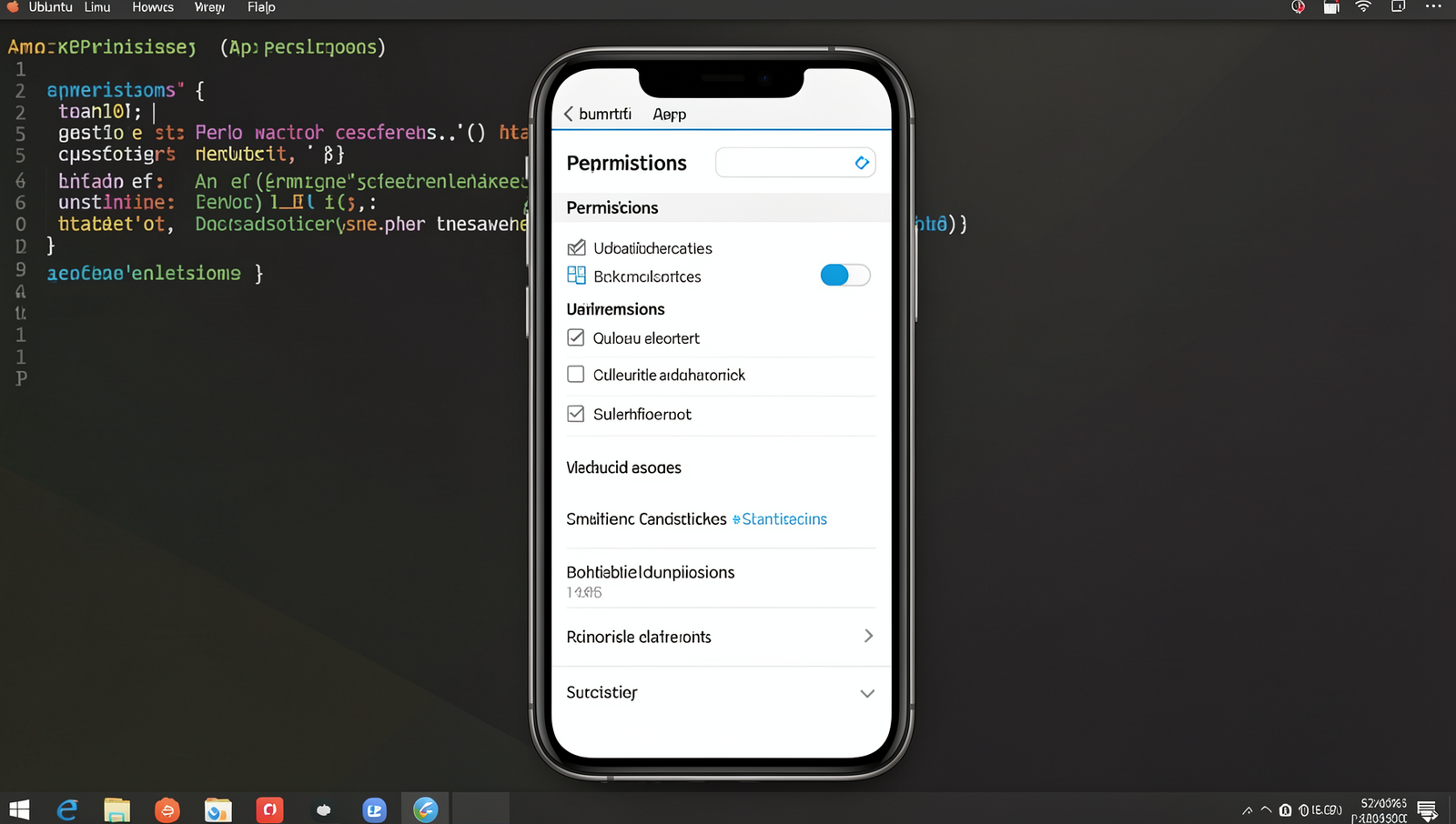
Regularly reviewing app permissions is a crucial step in protecting your phone from hackers. By ensuring that apps only have access to the data they genuinely need, you can minimize the risk of unauthorized data access. Follow these detailed instructions to effectively manage your app permissions:
- Access App Settings: Open your phone’s settings menu. This is typically represented by a gear icon.
- Navigate to Apps: Scroll down and select the “Apps” or “Applications” option. This will display a list of all installed applications on your device.
- Select an App: Choose an app from the list that you want to review. Tap on it to open its specific settings.
- Check Permissions: Look for a section labeled “Permissions.” Here, you will see a list of all permissions that the app has requested and what it currently has access to.
- Evaluate Necessity: Assess whether each permission is necessary for the app’s core functionality. For example, a simple game should not require access to your contacts or location.
- Modify Permissions: If you find permissions that seem excessive or unnecessary, toggle them off. Be cautious, as some apps may not function properly without critical permissions.
- Uninstall Unnecessary
About the Author